
Bring your Goodreads library to Bookleap
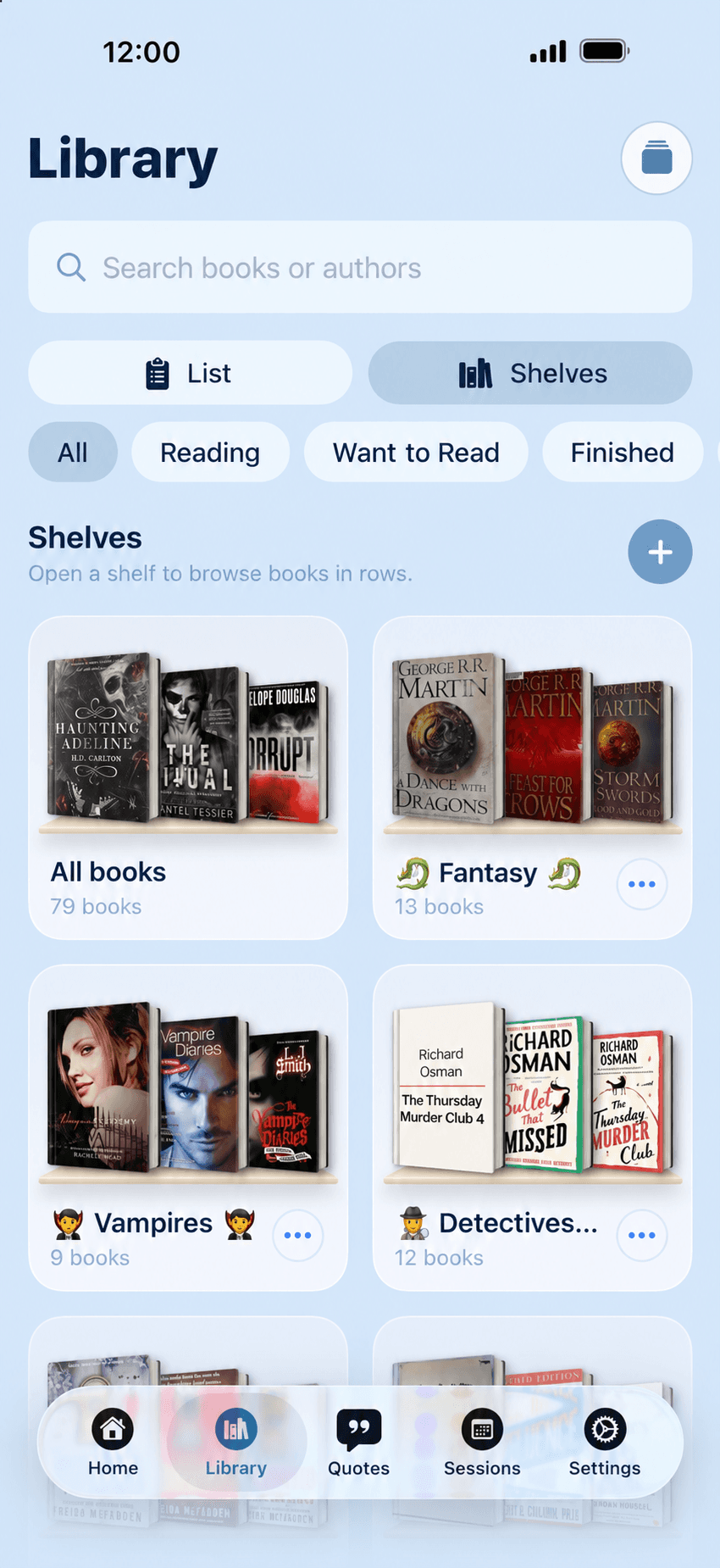
Move your Goodreads library to Bookleap on iPhone with a CSV import. Review incoming books and start tracking your next read without rebuilding your shelves.
This guide describes the iOS import flow. Some features require Premium.
By the Bookleap team · Updated
How Bookleap helps you read
Already have years of reading on Goodreads? Export your library as a CSV file and import it into Bookleap on iPhone. Start with the books you have already collected, review the incoming entries and keep building your reading history with sessions, notes and monthly plans.
Keep the catalog you have already built
Moving to a new reading tracker should not mean entering every title again. A Goodreads CSV gives Bookleap a starting point for your book collection, so you can spend time choosing what to read next.
Use the imported library alongside your current reads and finished books. The useful information depends on the fields present in your export; a CSV is not a complete copy of every part of a Goodreads account.
Review incoming changes before saving
The iOS import preview separates new, changed and unchanged entries. Check book titles and authors, search the preview and choose how to handle available entries before confirming.
Keep a backup of your current Bookleap data and retain the original CSV. Reviewing a small first import makes it easier to spot differences in editions, missing metadata or repeated entries.
Make the imported library useful every day
After importing, choose a current book, record your progress and save a note about what you read. Add a few titles to a monthly plan rather than treating the entire imported TBR as a deadline.
Start with the library you already have
Download Bookleap for iPhone, import your CSV and pick your next current read.
This guide describes the iOS import flow. Some features require Premium.
Getting started with goodreads import
Export from Goodreads
Use Goodreads’ library export to obtain a CSV file, then make the file available on your iPhone.
Open Bookleap import
Go to Settings → Export & Import → Import and select the CSV.
Review and confirm
Check the preview, confirm your choices and open the imported library.
An everyday example
You have 80 finished books and a long want-to-read shelf in Goodreads. Import the CSV, check a few familiar titles and then choose three books for next month in Bookleap. Your next reading session starts from that existing collection.
Questions and answers
Does this require my Goodreads password?
The CSV import uses a file you export yourself. You do not enter a Goodreads password into the import flow.
Will every Goodreads field transfer?
Only information supported by the file and importer can transfer. Review the preview rather than assuming that social activity or every Goodreads field is included.
Is a CSV import the same as live Goodreads sync?
No. Import brings in the contents of a file at that moment. It does not keep both services continuously synchronized.
Where do I start on iPhone?
Open Settings → Export & Import → Import in Bookleap and choose your Goodreads CSV.
Start with the library you already have
Download Bookleap for iPhone, import your CSV and pick your next current read.
This guide describes the iOS import flow. Some features require Premium.