
A home for book quotes you want to find again
Collect book quotes with authors and linked books on iPhone. Search your saved passages, mark favorites and keep notes beside the stories that inspired them.
This guide describes the iOS quote workflow. Some features require Premium.
By the Bookleap team · Updated
How Bookleap helps you read
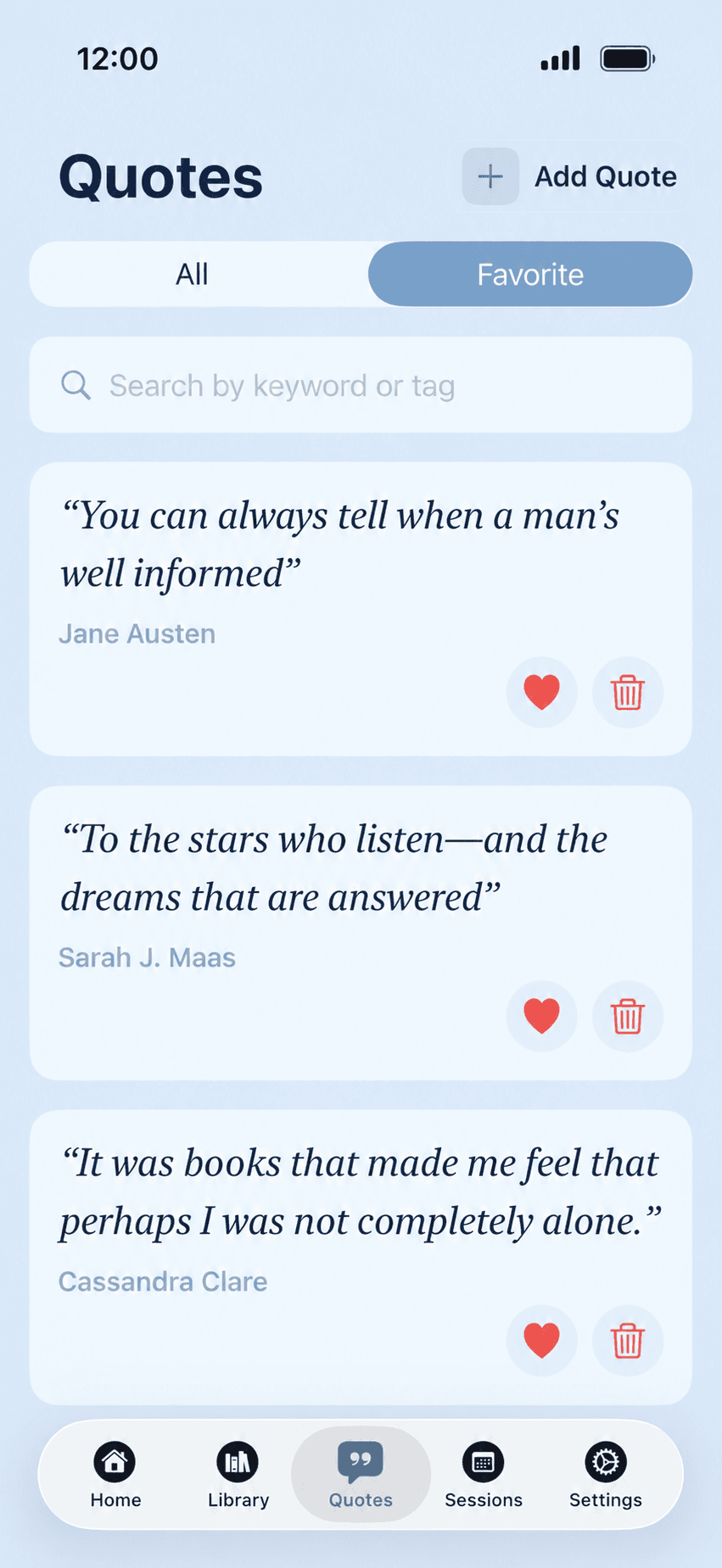
A favorite line is easier to revisit when you remember its book and author. In Bookleap on iPhone, save quotes, connect them to books, mark favorites and search your collection. Keep the author’s words distinct from your own reading notes, with both close to the book.
Keep the source beside the words
Enter the passage, its author and its associated book instead of leaving another unlabelled screenshot in your photo library. That context helps when you want to recommend the book or return to a discussion.
Quote saving is a personal collection workflow. It does not promise to automatically find, scan or extract every passage from a book file.
Find the right passage later
Search quotes by text or author and mark favorites for a smaller collection of lines you want to revisit. A quote of the day on the Home screen gives saved words another chance to be read.
For a book-club meeting, return to the book and its related notes as well as the quote. A passage can start the conversation while your own notes explain why it mattered.
Share a selected quote with your own design
On iOS, Share Studio can turn a saved quote into a shareable card. Choose a background and text styling, then export the image. Check the source and the amount quoted before posting it publicly.
Save the next line that stays with you
Keep the words, author and book together in your reading library.
This guide describes the iOS quote workflow. Some features require Premium.
Getting started with book quotes
Save a passage
Create a quote, enter the text and author, and link it to a book.
Keep favorites close
Mark favorite quotes and search the collection when you need a line.
Return or share
Revisit the passage in your library or use Share Studio to make an image.
An everyday example
You finish a chapter with one sentence you want to discuss at book club. Save the quote with its author and book, then add a separate note about your reaction. Next week, search a few words to find it again.
Questions and answers
Can I search saved quotes?
Yes. Search the quote text or author and use favorites to narrow your collection.
Are quotes the same as notes?
No. Quotes preserve a passage; notes record your own thoughts. Both can relate to the same book.
Does the app automatically extract quotations from ebooks?
This guide describes entering and organizing quotes. It does not promise automatic quote extraction from ebook files.
Can I make a quote image?
The iOS Share Studio includes quote cards with design and export controls.
Save the next line that stays with you
Keep the words, author and book together in your reading library.
This guide describes the iOS quote workflow. Some features require Premium.