
Keep your reading close with iPhone widgets
Keep current books, reading goals, streaks and quotes in iPhone widgets. Follow an active reading timer on the Lock Screen with Bookleap Live Activity.
Requires iOS widget support. Availability depends on your device and iOS version; some features require Premium.
By the Bookleap team · Updated
How Bookleap helps you read
Bookleap’s iOS widgets bring current books, goals, reading statistics, streaks and quotes outside the app. Use a widget as a reminder of the story you want to return to. During a reading session, Live Activity can show the active timer on your iPhone Lock Screen.
Choose the information worth keeping visible
A current-book widget gives your unfinished story a place on the Home Screen. Goal, statistics and streak widgets put your recorded activity nearby, while a quote offers a different way to return to your library.
Choose a widget based on the information you want to see, rather than filling the screen with every available metric. Widget sizes and layouts depend on the options provided by iOS and the app.
Check an active session from the Lock Screen
Live Activity is for a running reading timer; it is different from a Home Screen widget. Start a session for your book and check the elapsed reading time without opening the full library.
Your recorded sessions remain in Bookleap for later review. Widgets and Live Activity complement that history rather than replacing the session calendar.
Keep the underlying library current
Update your current reads and record sessions so the widgets have useful information to display. iOS controls widget refresh timing, so a widget should not be treated as a continuously updating copy of every screen.
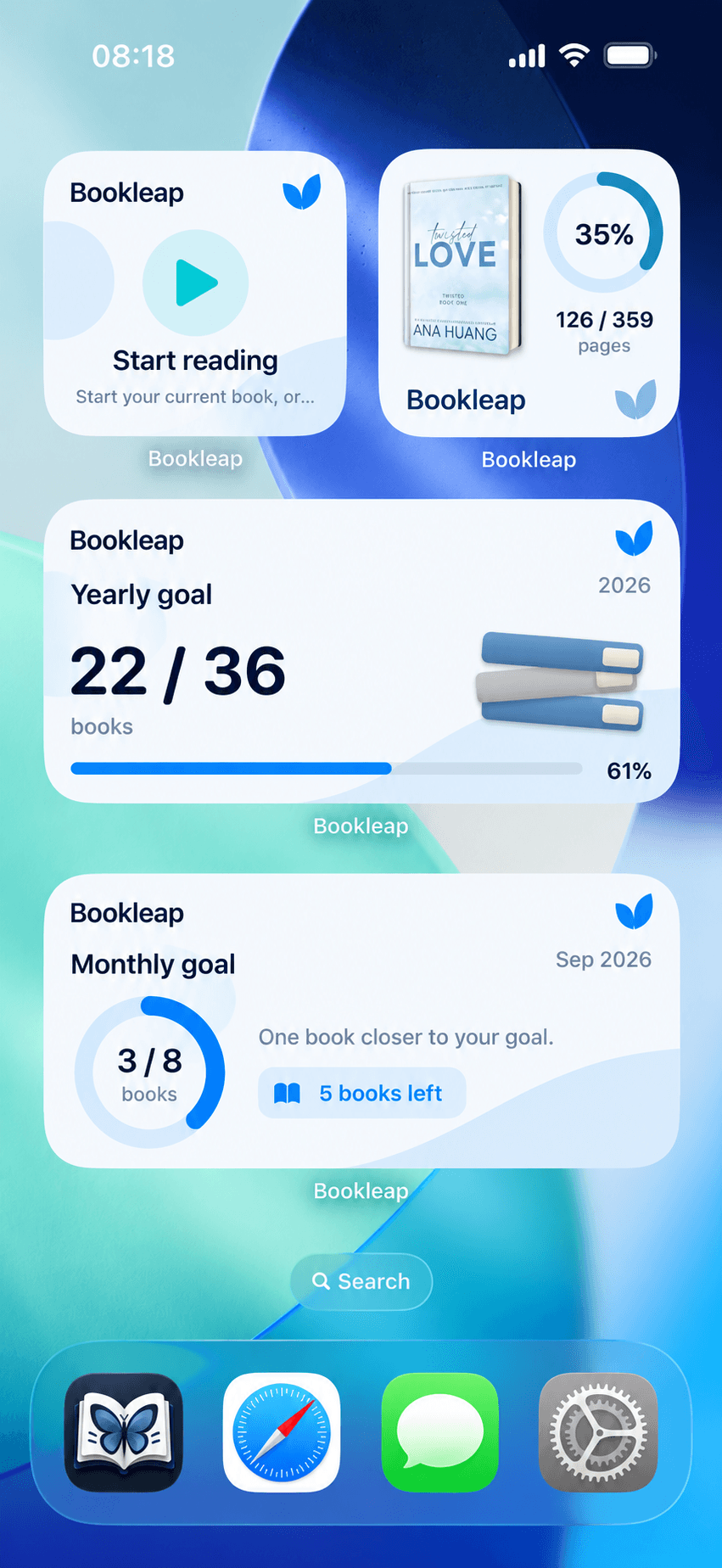
Put your next read on your Home Screen
Download Bookleap for iPhone and choose a widget you will want to see.
Requires iOS widget support. Availability depends on your device and iOS version; some features require Premium.
Getting started with iphone reading widgets
Add a Bookleap widget
Open the iPhone widget gallery and choose a Bookleap layout.
Select your focus
Choose the widget information or supported configuration that suits your routine.
Try the reading timer
Start a book session in Bookleap to use its Live Activity on the Lock Screen.
An everyday example
Place your current novel beside a reading-goal widget. In the evening, start a session for that novel and check the active timer on the Lock Screen while you keep your attention on the book.
Questions and answers
Are widgets and Live Activity the same?
No. Widgets display selected reading information; Live Activity shows the active timer during a session.
Does this page describe Android widgets?
No. This guide covers Bookleap widgets and Live Activity on iPhone. Android availability and layouts can differ.
Why might a widget update later than the app?
iOS controls widget refresh scheduling. Open Bookleap and check your underlying book and session data if something looks out of date.
Do I need an active timer to view a quote widget?
No. A quote widget and the timer’s Live Activity serve different purposes.
Put your next read on your Home Screen
Download Bookleap for iPhone and choose a widget you will want to see.
Requires iOS widget support. Availability depends on your device and iOS version; some features require Premium.